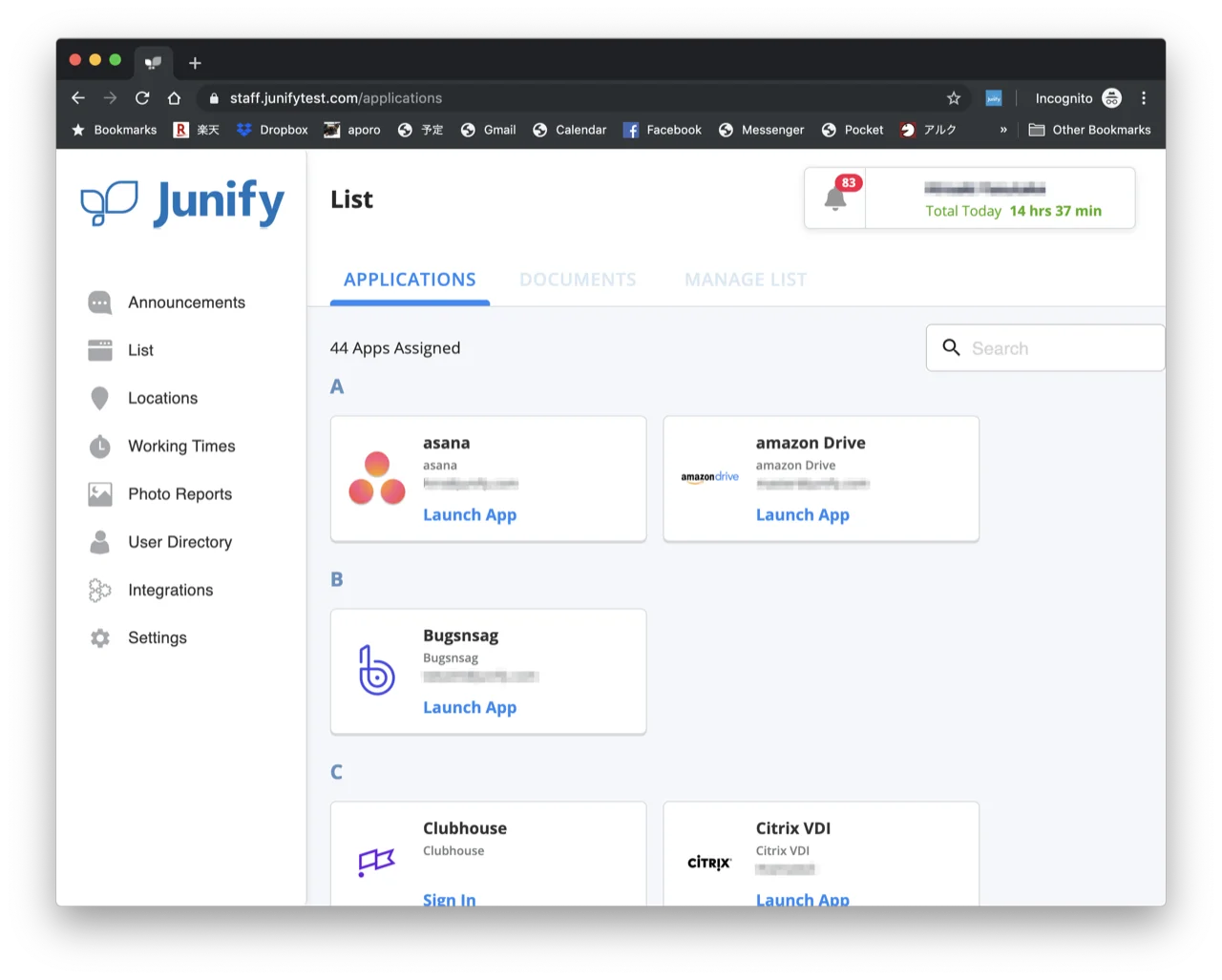
My Junify: Login and Access Junify on Your PC
To log in to Junify on a PC, you need Chrome and the Junify app on your smartphone, set up with your account. Follow the steps below.
You can also watch the steps in a video:
https://youtu.be/lH6dsgdt00g
* Firefox is not supported.
1. Set up: install the Junify Chrome extension
1-1. Go to https://www.junify.com/ and click “QR Code Login”.

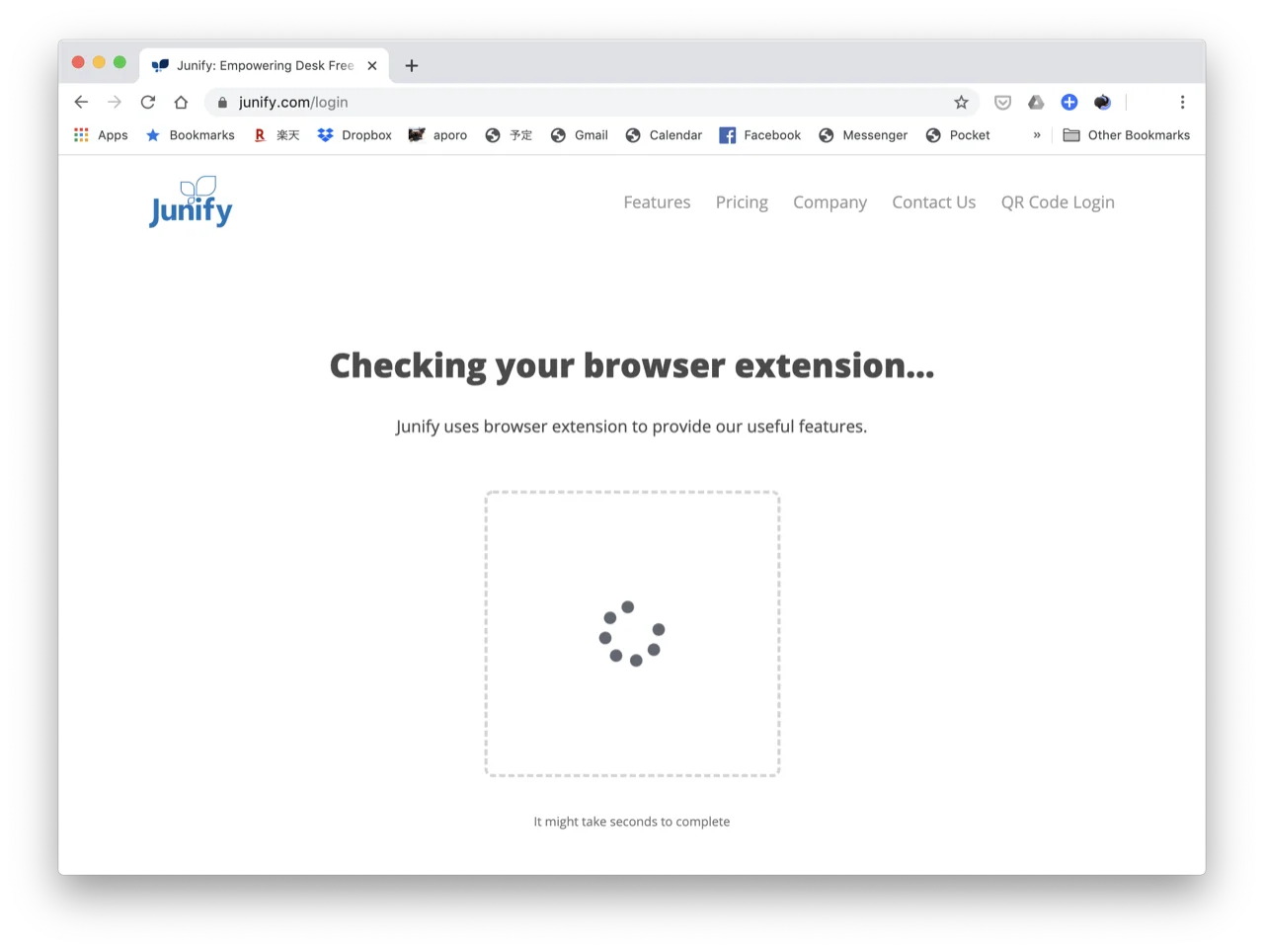
1-2. Junify takes a few seconds to check whether Chrome has the Junify extension.
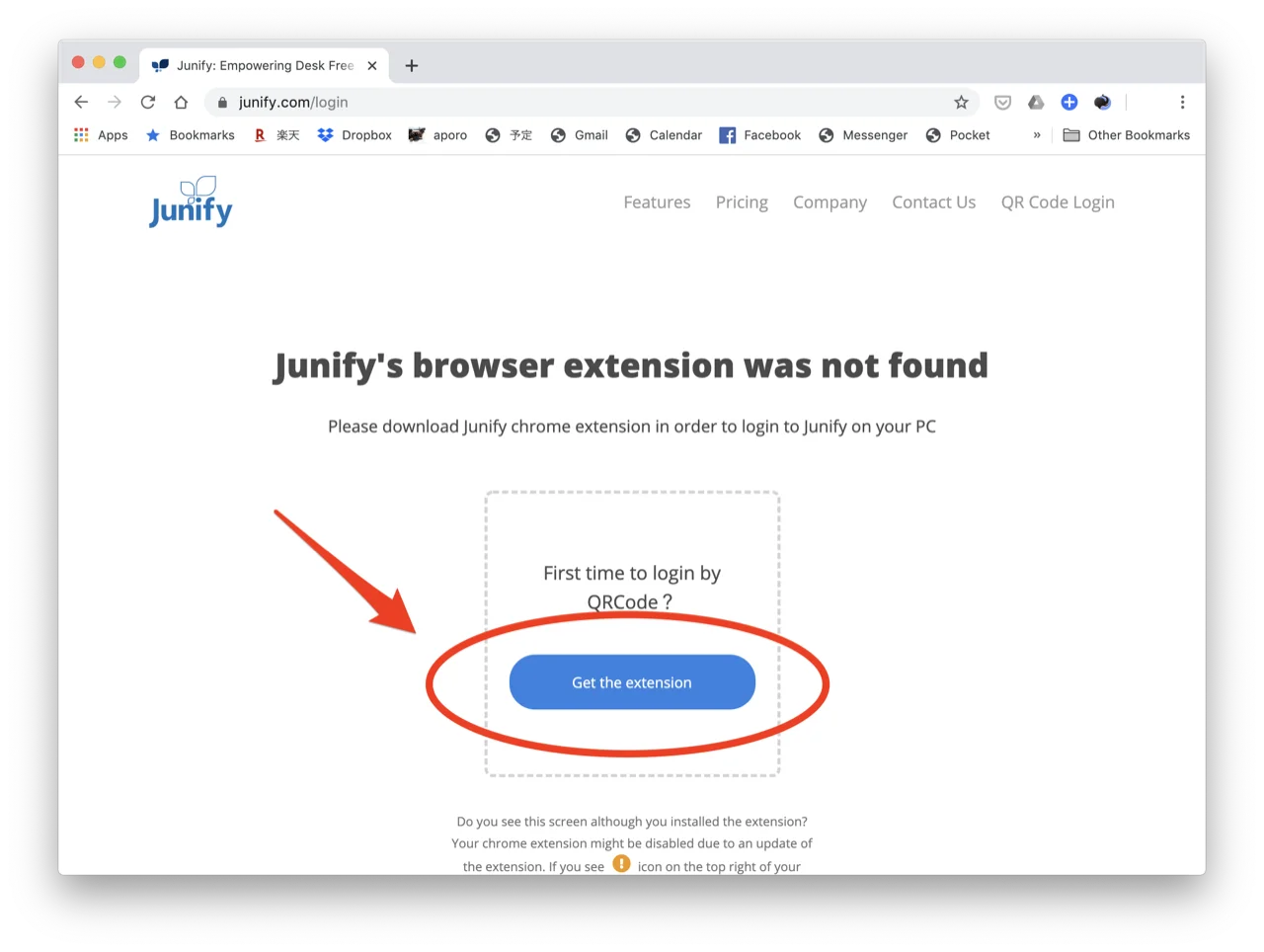
1-3. If the Junify extension is not installed in Chrome, you see a message like the one below. If you see a QR code instead, skip to step 1-9. Otherwise, click “Get the extension” to start the setup.
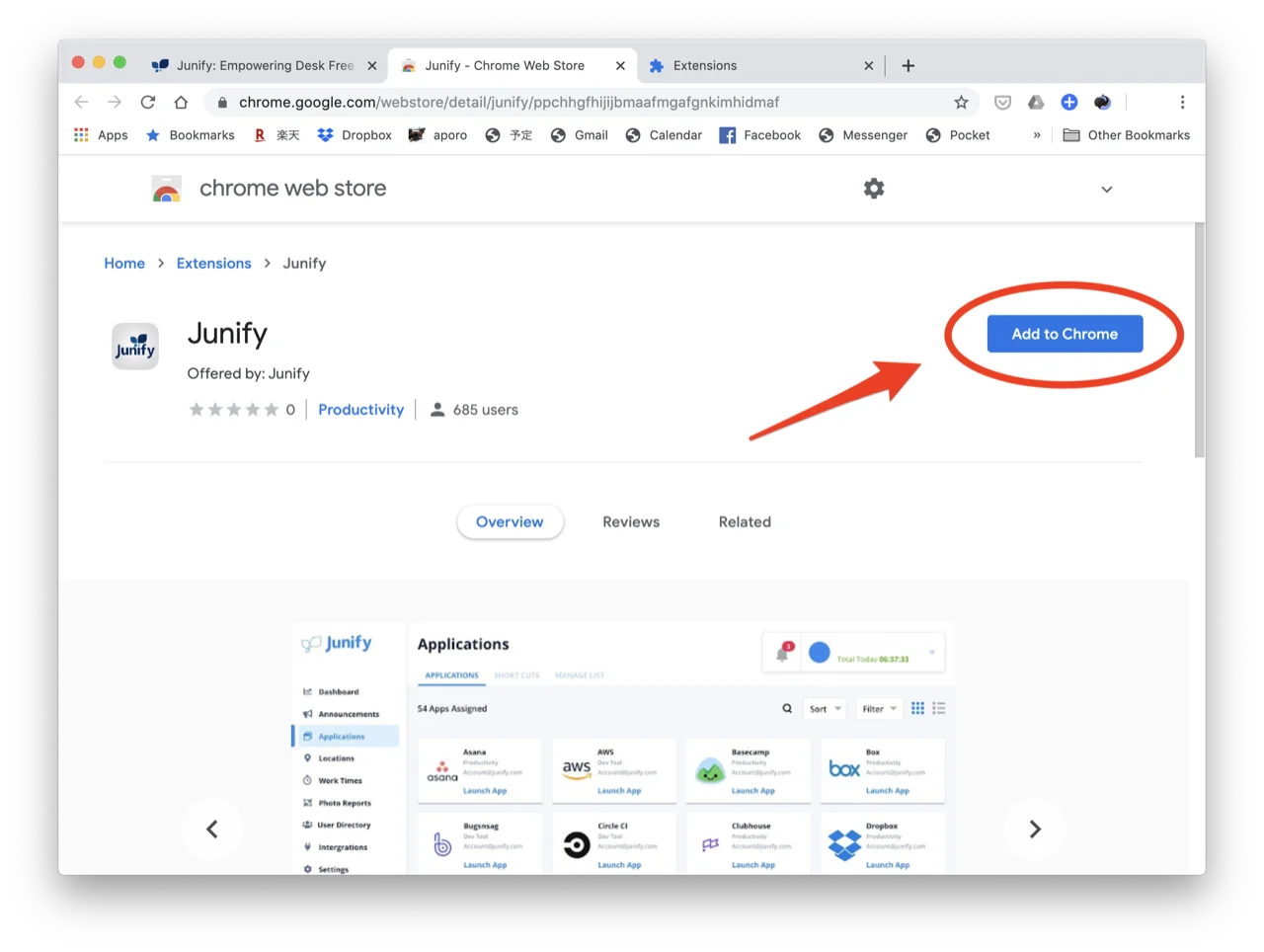
1-4. In the Chrome Web Store, click “Add to Chrome”.
1-5. Click “Add extension”.
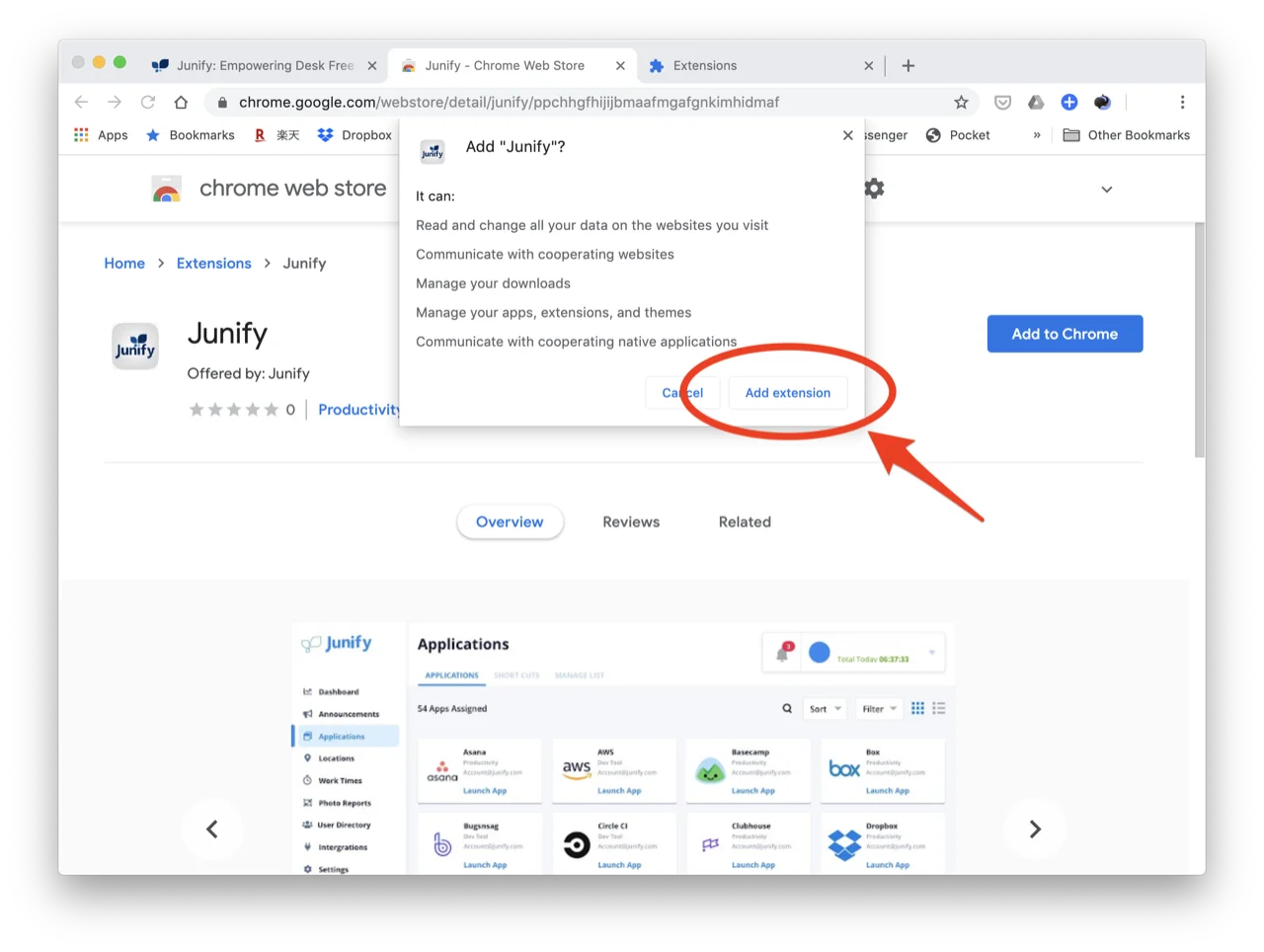
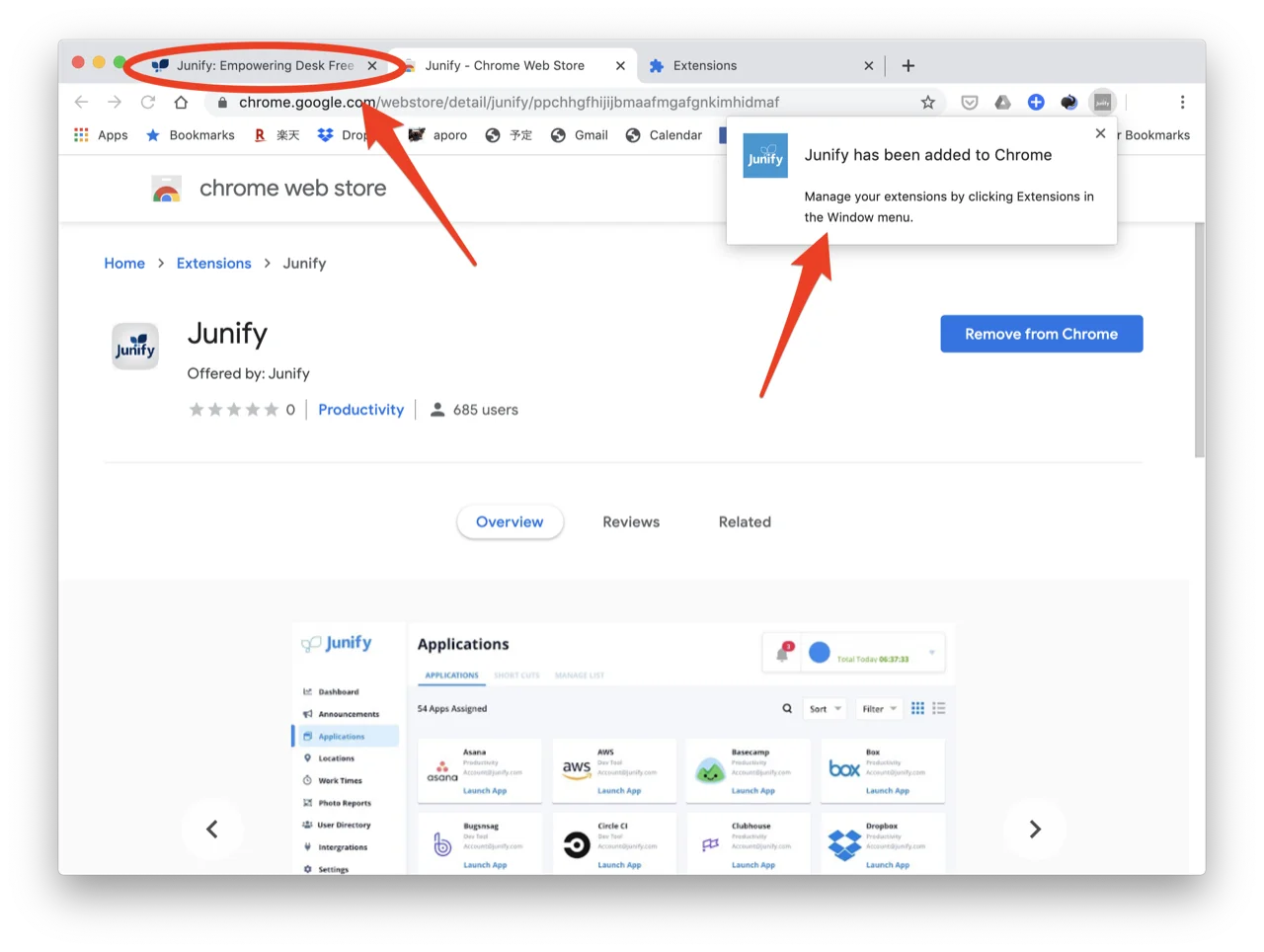
1-6. The extension is added. Go back to the Junify tab you started from.
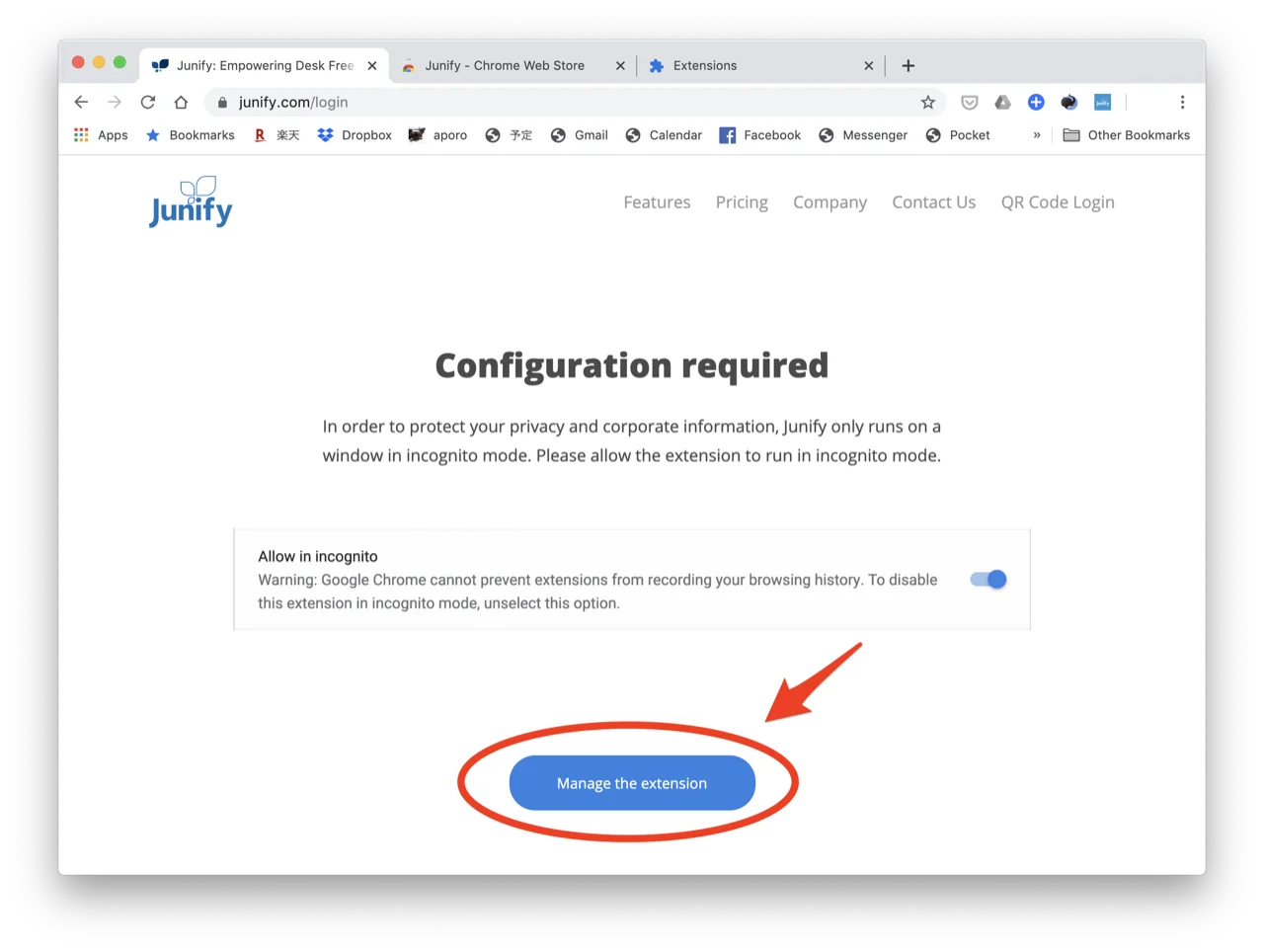
1-7. The Junify extension needs permission to run in Incognito mode. Click “Manage the extension”.
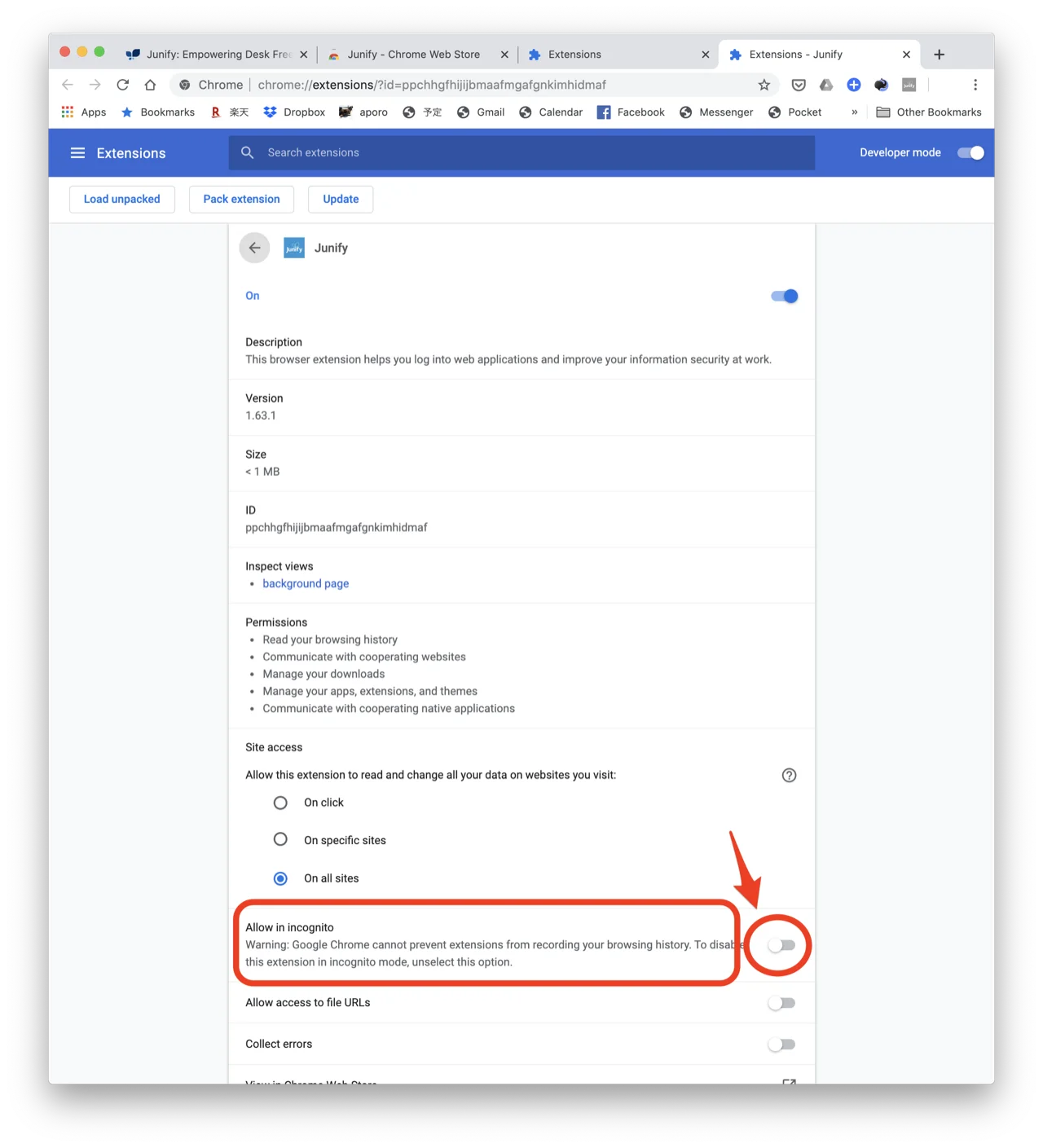
1-8. Turn on the “Allow in incognito” switch.
1-9. Go back to https://www.junify.com/login: you now see a QR code. Setup is complete, and you can use Junify on your PC.
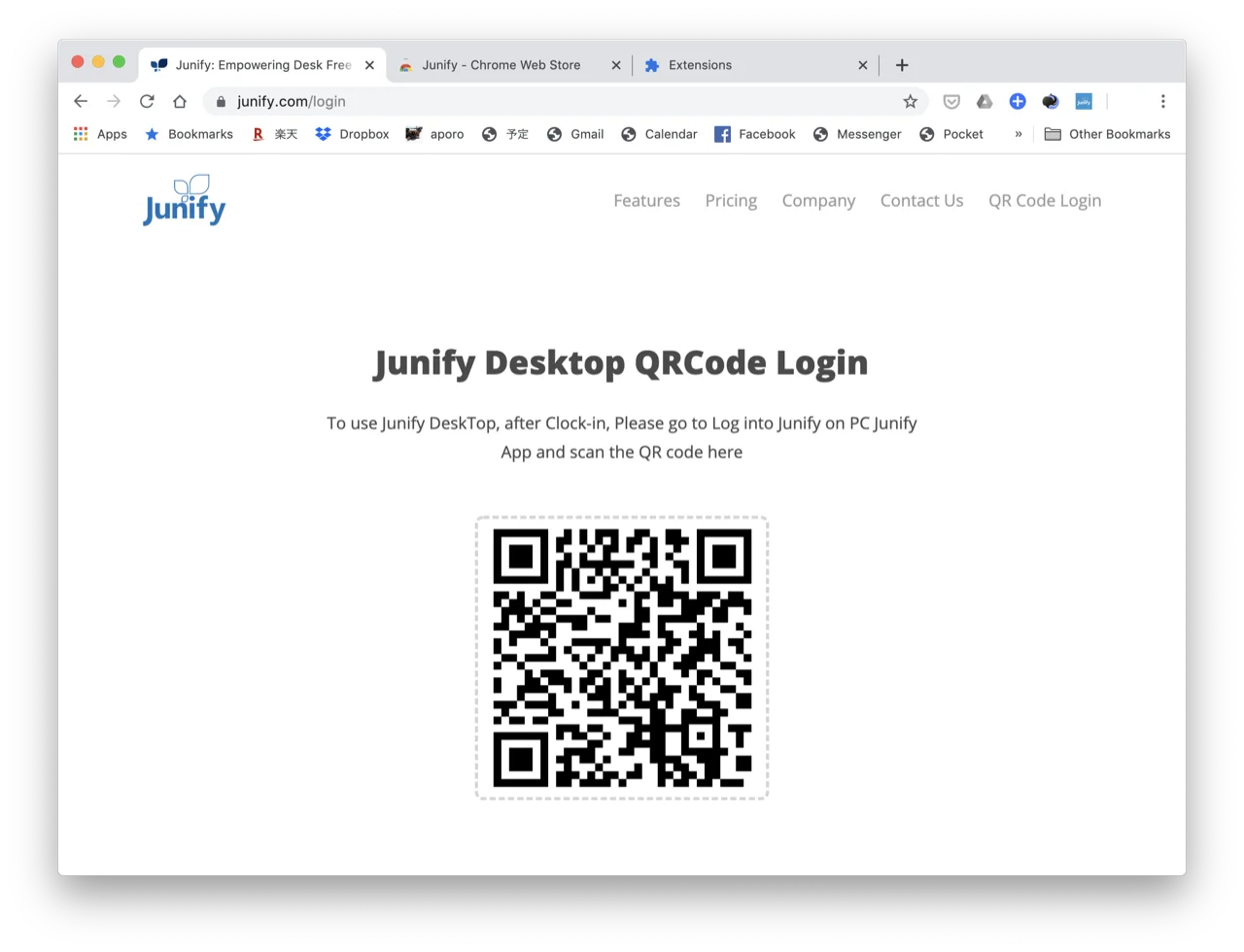
2. Log in to Junify on your PC
Open https://www.junify.com/login in Chrome, and open the Junify app on your smartphone.
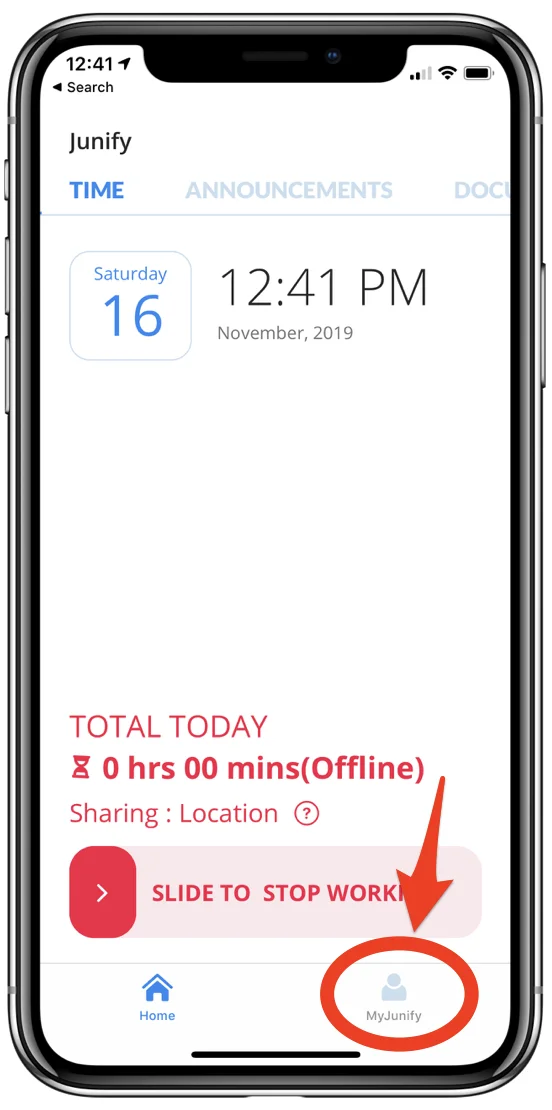
2-1. Tap “MyJunify” at the bottom right. Depending on your organization’s policy, you may need to clock in before you can open MyJunify.
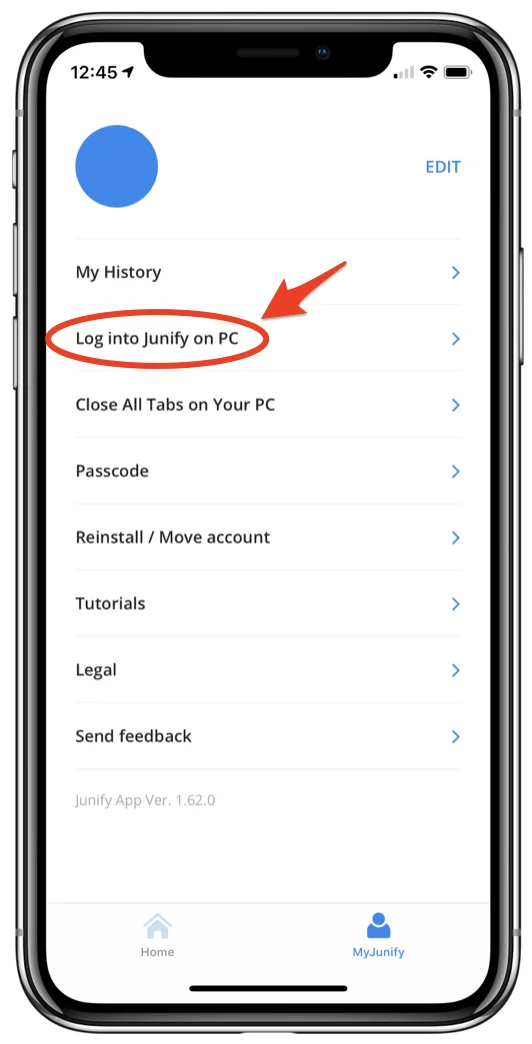
2-2. Tap “Log into Junify on PC”.
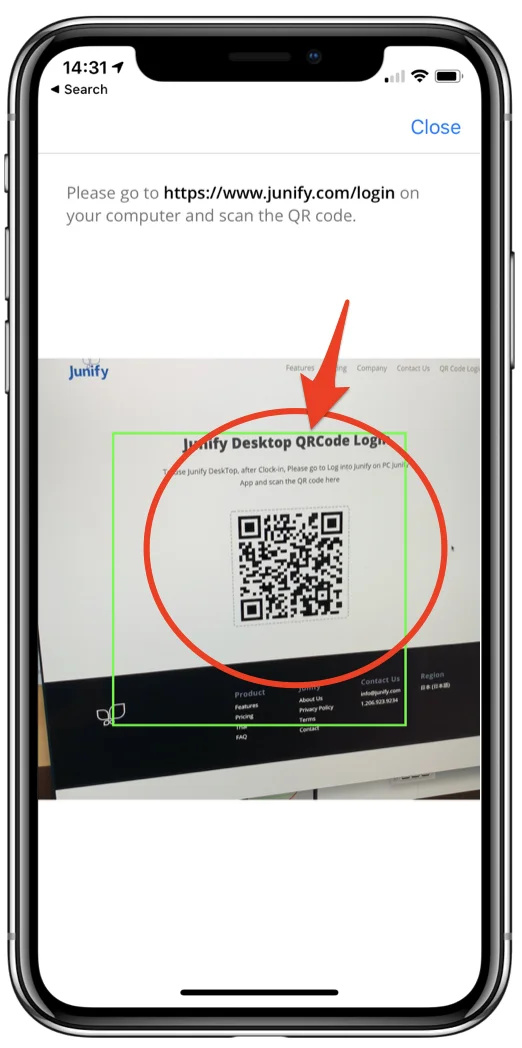
2-3. Point the camera view in the Junify app at the QR code on https://www.junify.com/login.
2-4. A new Incognito window opens. Junify uses Incognito mode so that the browser does not save passwords and so that sign-in details can be passed to each site.