Add a notification for an event you choose
Build a notification on any event you pick, so the people you choose are told by email or in the app.
When to use this
- When the recommended notifications do not cover a change you need to hear about.
- When you need to know right away each time a certain kind of change is made.
Steps
-
Open Monitors in the menu on the left.
-
Open the Settings tab at the top of the page.
-
In the list on the left of the Settings tab, open Notification.

-
Click Add notification above the list, on the right. A window for adding a notification opens.

-
Click the Notify Me About field at the top of the window. A list of events opens.
-
In the list, the events are grouped under the same categories as the audit log. Click the event you want to hear about, such as a change to a user group.

-
Enter a name you will recognize later in Name. Junify suggests a name based on the event, and you can keep it or change it.

-
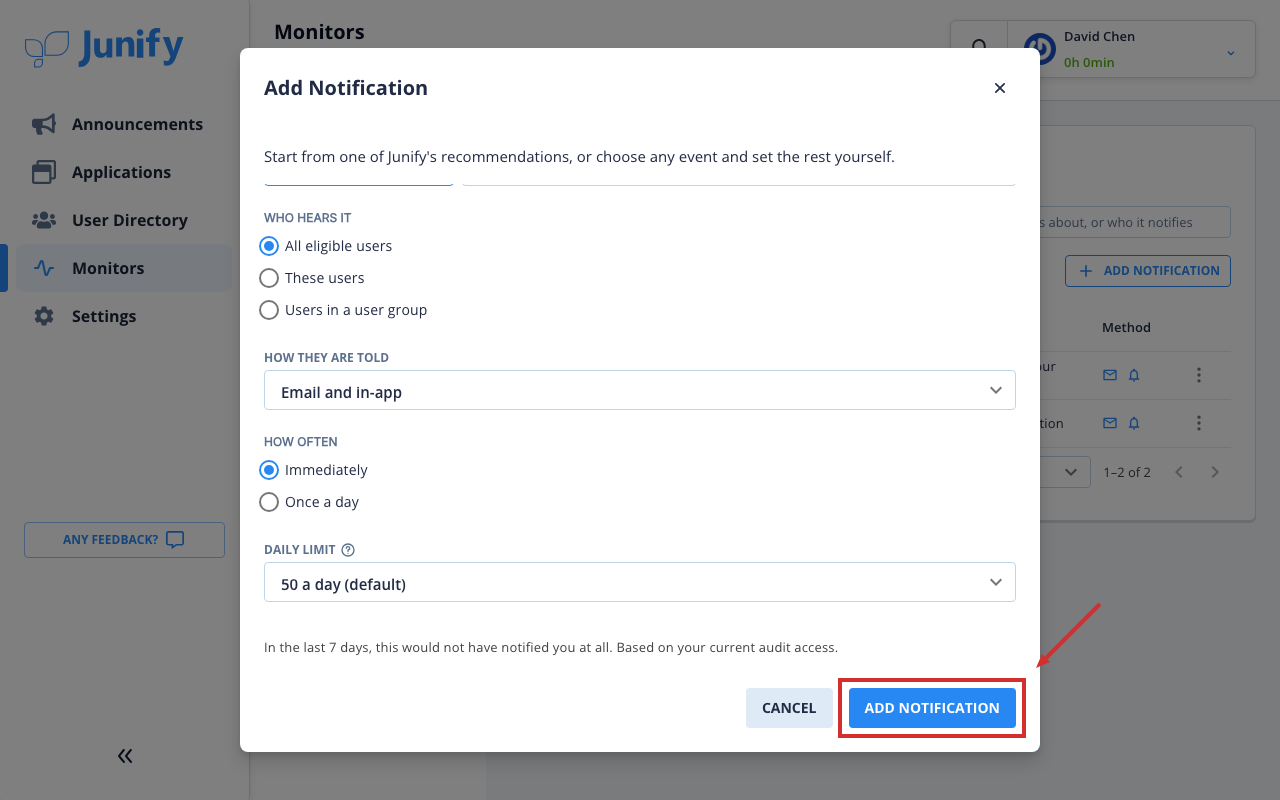
By default, the notification watches anyone’s actions and tells all eligible users right away, by email and in the app. Check these settings below the name, and the daily limit of 50, then click Add notification at the bottom right.
-
Check that the notification you added is now in the list.

-
Click the menu button at the right end of the notification’s row.
-
Check the menu that opens. From it, you can later edit the notification, pause it until midnight or until you resume it, duplicate it, or delete it.

Things to know
- A notification covers only the events you can see in the audit log, even when it watches anyone’s actions. Each person who hears it is told only about events they can see there.
- When a notification reaches its daily limit, it pauses itself until midnight in your organization’s time zone and tells you once.