Export audit log entries as a CSV file
Download the audit log entries for a period you choose as a CSV file you can hand over.
When to use this
- When an auditor asks you for the records of a certain period.
- When you need to hand over the records for a period as a file.
Steps
-
Open Monitors in the menu on the left.

-
Open Audit Log at the top of the page.

-
Click Add filter above the list. A panel opens, with the kinds of filters on the left.

-
On the right of the panel, among the ways to set a period, click Choose dates….

-
Click the Date Period field. A calendar opens.

-
In the calendar, click the first day of the period you want to export.

-
Click the last day of the period.

-
Click Apply at the bottom of the calendar. The period appears above the list, and the panel stays open.

-
Click outside the panel to close it.
-
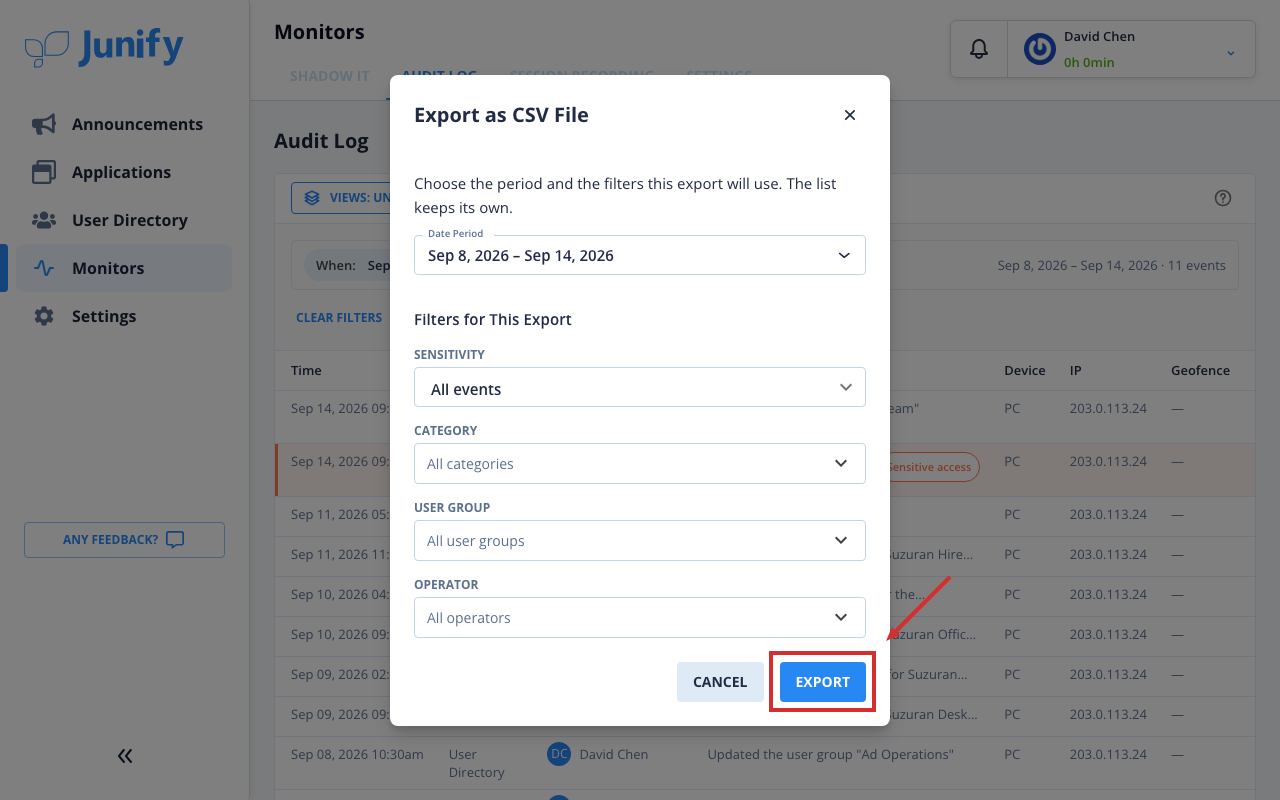
Click Export as CSV File under the filters. A window opens with the period and the filters for the file.

-
Check the period and the filters, then click Export at the bottom of the window.
-
Check the notice at the bottom right. It says that the file is being prepared.

When the file is ready, it downloads, holding the entries the list would show you for the period and filters you exported.
Things to know
- One export can cover up to 31 calendar days. If the list’s period is longer, shorten it before you click Export as CSV File.
- The window starts from the list’s period and filters. Changes you make in the window apply only to the file, and the list keeps its own.