Add a recommended notification
Add a notification Junify recommends, so the people you choose are told by email or in the app.
When to use this
- When you want to hear about an important change right away, without checking the audit log.
- When a change you must not miss could happen while you are busy with other work.
Steps
-
Open Monitors in the menu on the left.

-
Open the Settings tab at the top of the page.

-
In the list on the left of the Settings tab, open Notification.

-
Click Add notification above the list, on the right. A window for adding a notification opens.

-
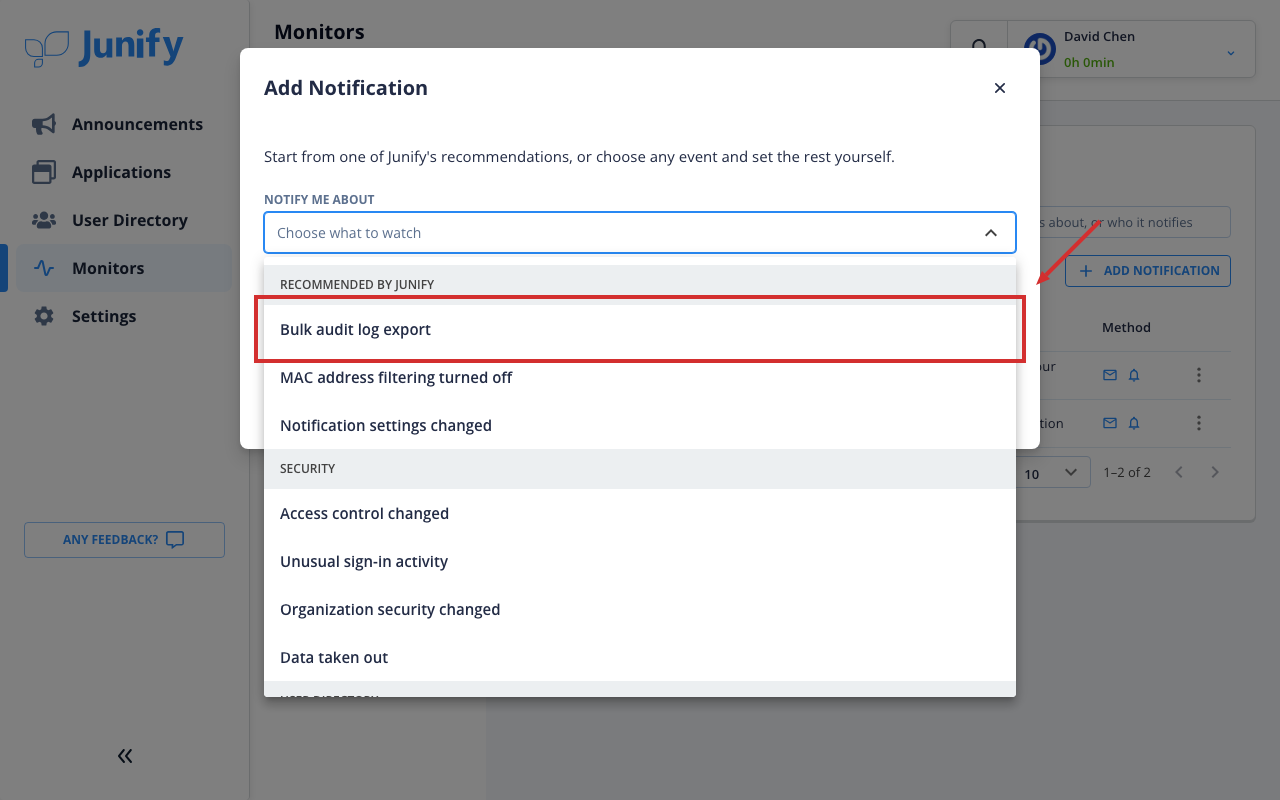
Click the Notify Me About field at the top of the window. A list of things to watch opens.

-
Choose one of the notifications Junify recommends at the top of the list, such as Bulk audit log export. Junify decides what each one watches and how often it is sent.
-
Check who hears it and how they are told, and change them if you need to. Then click Add notification at the bottom right of the window.

-
Check that the notification you added is now in the list.

Things to know
- A recommended notification reaches only owners and managers with an active account. A person gets the email only if they have an email address registered; the in-app notice reaches them either way.
- A recommended notification is sent only when at least one person can receive it. If no one can, it stays in the list, and its row shows a warning asking you to add people.