Save your audit log filters for next time
Save the filters you use often under a name, so you can bring back the same records in one step.
When to use this
- When you check the same kind of records every week.
- When you set the same filters each time you open the audit log.
Steps
-
Open Monitors in the menu on the left.

-
Open Audit Log at the top of the page.

-
Click Add filter above the list. A panel opens, with the kinds of filters on the left.

-
On the right of the panel, among the ways to set a period, click Choose dates….

-
Click the Date Period field. A calendar opens.

-
In the calendar, click the first day of the period you want to see.

-
Click the last day of the period.

-
Click Apply at the bottom of the calendar. The period appears above the list, and the panel stays open.

-
In the list of filter kinds on the left of the panel, click Category.

-
Click the checkbox next to the category you want to see.

-
Click outside the panel to close it.
-
Click Save as View under the filters. A window opens, filled in with the filters the list is showing.

-
Enter a name you will recognize later in View Name.

-
Check the name and the filters, then click Create at the bottom of the window.

-
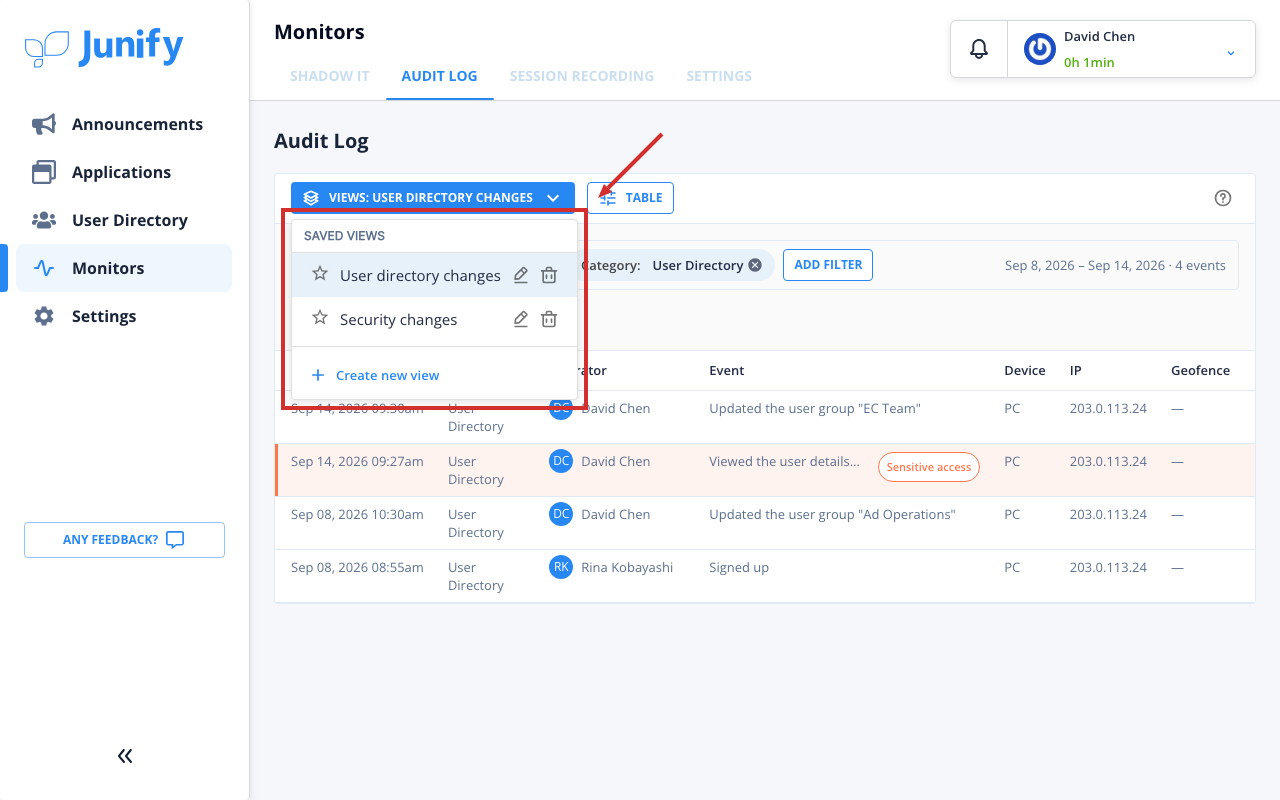
At the top left of the list, click Views, which now shows the name of your new view.

-
Check that your new view is in the list of saved views. The list shows only the views you saved.
Things to know
- Save as View appears only when the list has at least one filter. It is hidden while a saved view you opened is shown without changes.
- If you save a period with a view, the view keeps those exact dates.