What's new: October 2026
Audit log filters, entry details, saved views, exports and notifications, plus recordings that load as they play.
Find who did what in the audit log
The renewed audit log has one row of filters for period, category, the person who acted, user group, and sensitivity. Your filters stay in the page’s web address, so reloading the page or sharing the link keeps them. Entries that show access to sensitive information are marked, so they stand out in the list.
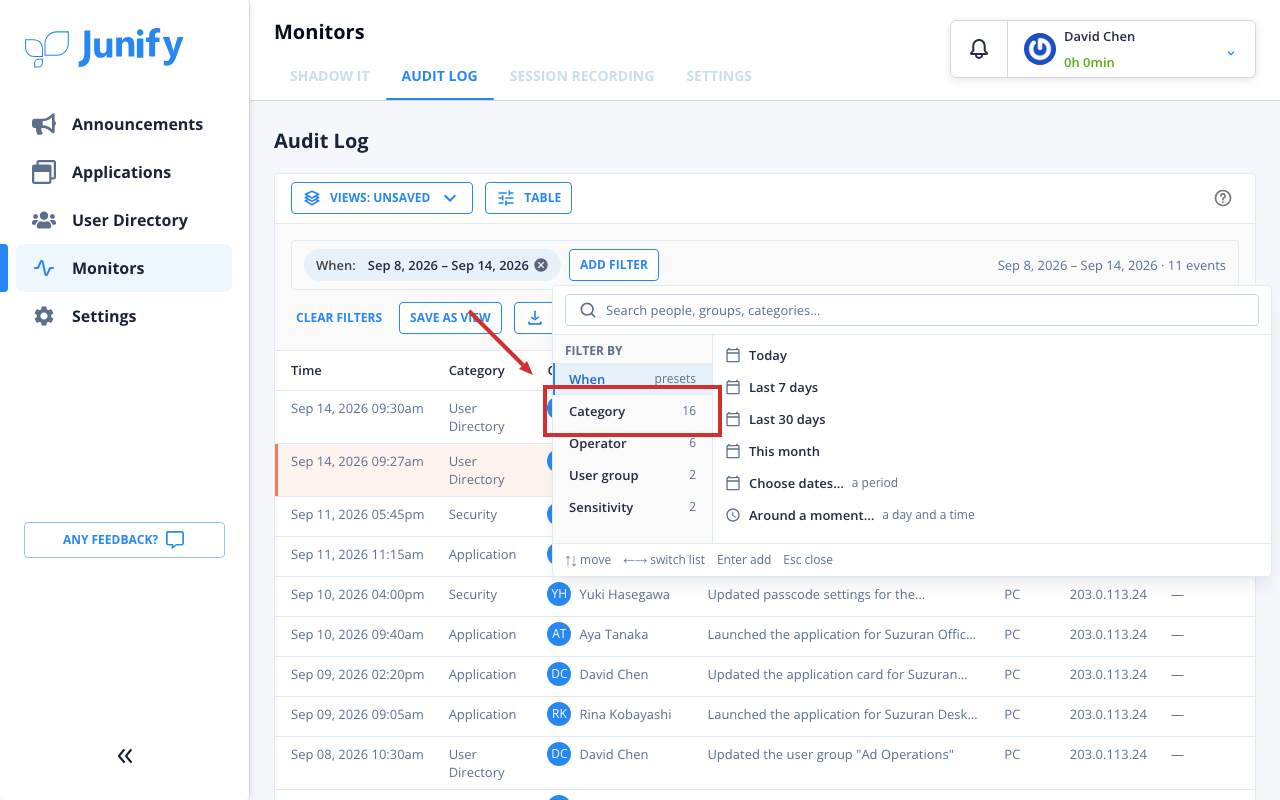
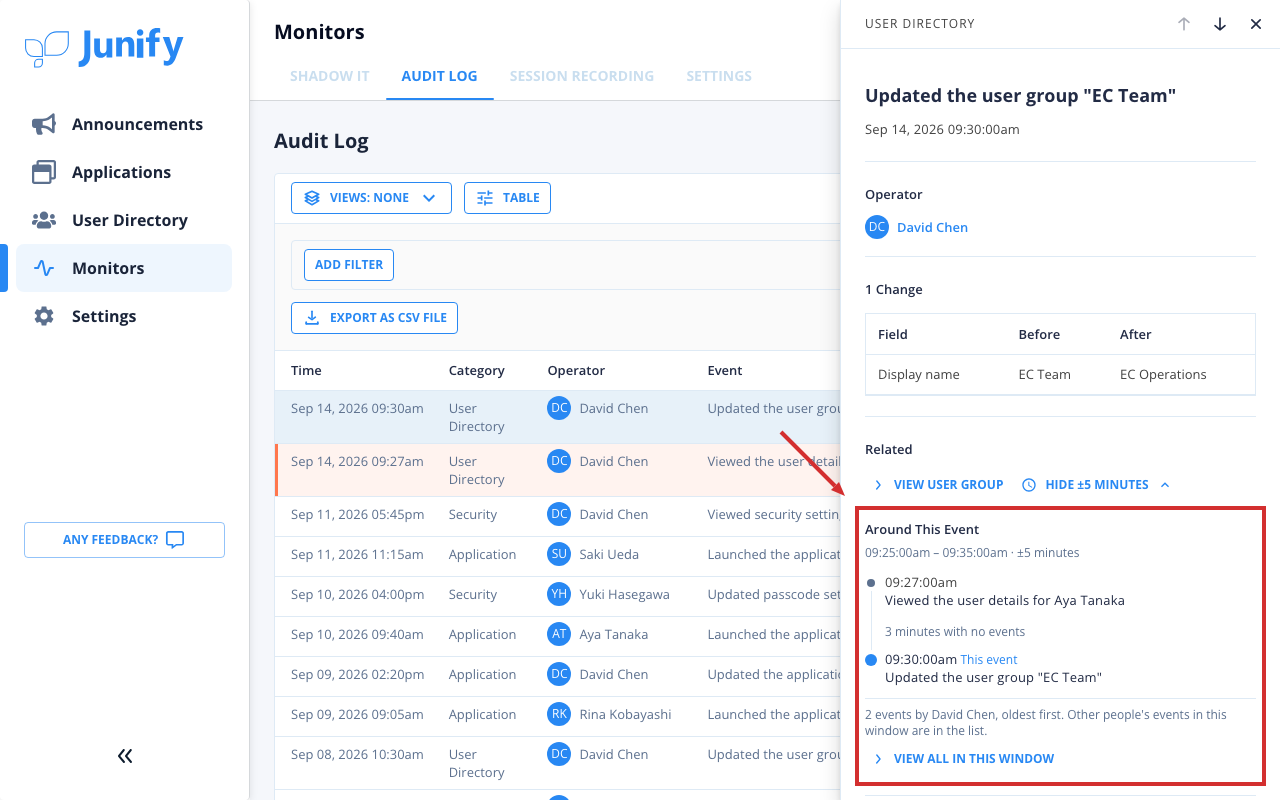
See what changed in each audit log entry
Each audit log entry now opens a details panel that lists every changed item with its value before and after the change. Links in the panel open what the entry names, such as a user group, an application or a recording. You can also list what the same person did in the five minutes before and after, to see the change in context.
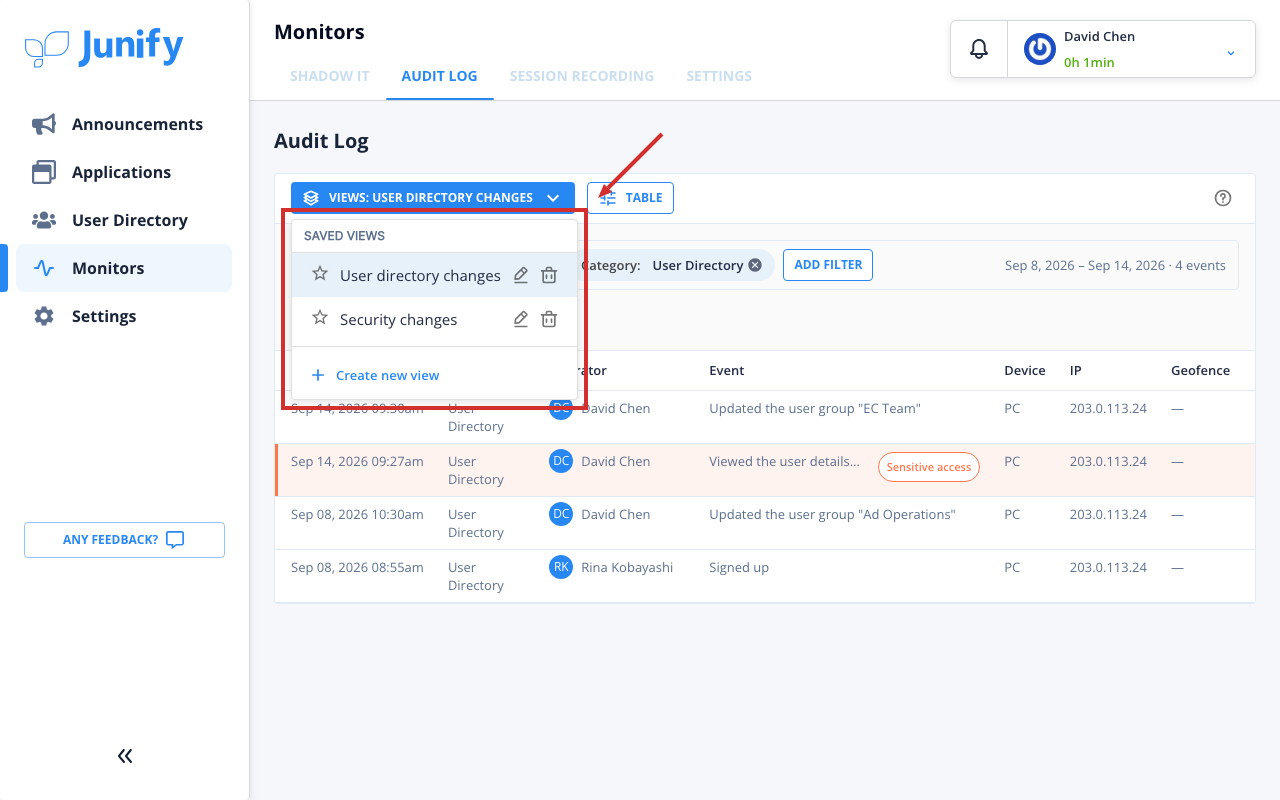
Save the audit log filters you use often
You can now save a set of audit log filters under a name, and bring it back in one step. That saves setting the same filters by hand each time you check the same kind of records. Your saved views are your own, and you can make one of them your default.
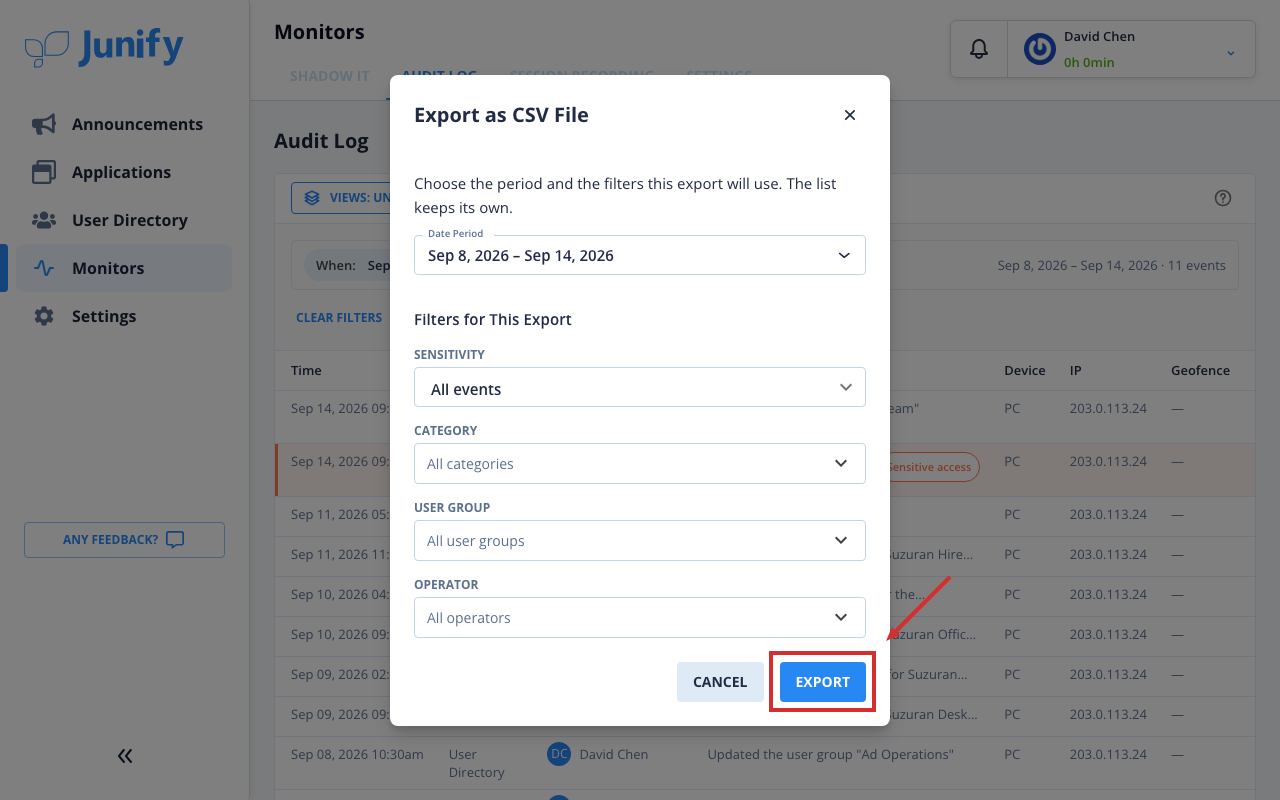
Export exactly the entries the audit log shows
Audit log exports now hold the same entries the list shows for the period and filters you choose. The export window starts from the list’s period and filters, so the file matches what you have been reviewing. When an auditor asks for the records of a period, you can hand over a file without rebuilding the search.
Get notified of important changes
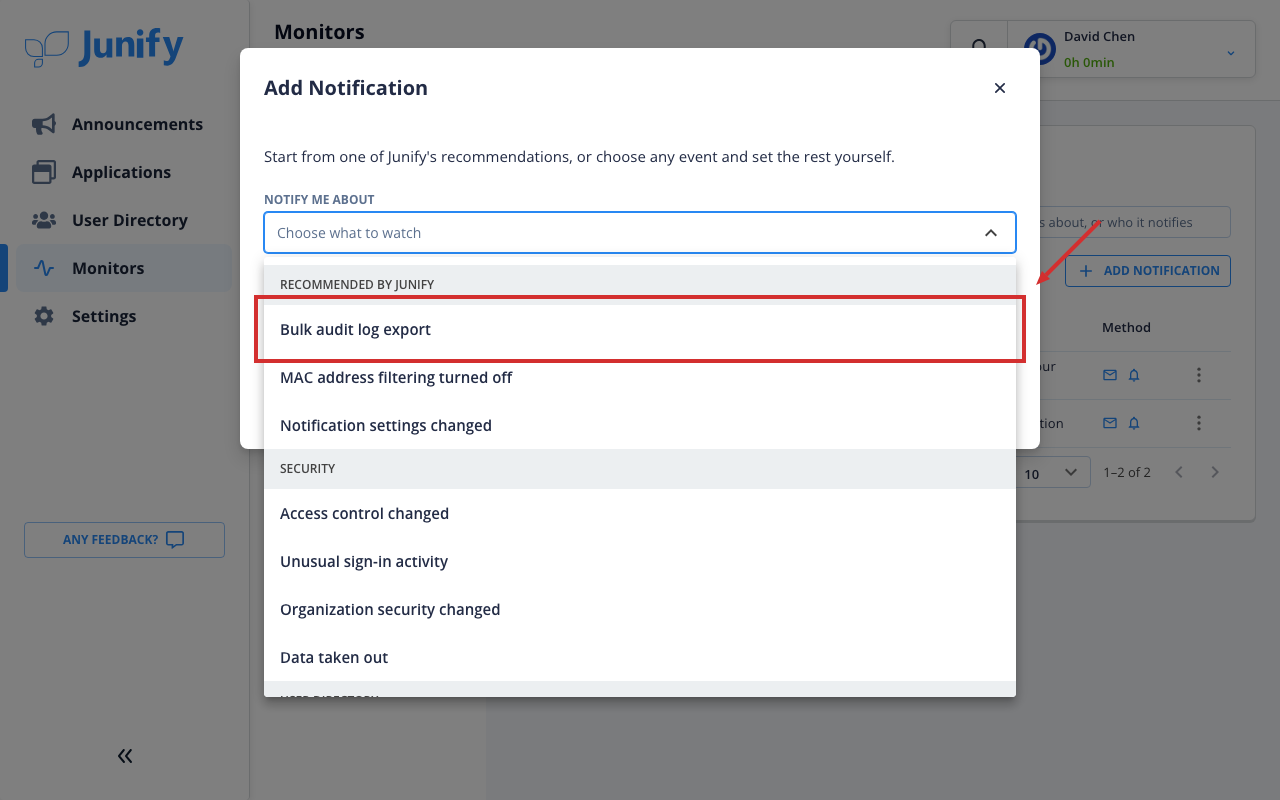
Junify now recommends notifications for important changes, such as an access role being assigned or the audit log being exported in bulk. Junify decides what each one watches and how often, and you choose who is told and whether by email, in the app, or both. You learn of changes you must not miss without checking the audit log yourself.
Choose the events you want to hear about
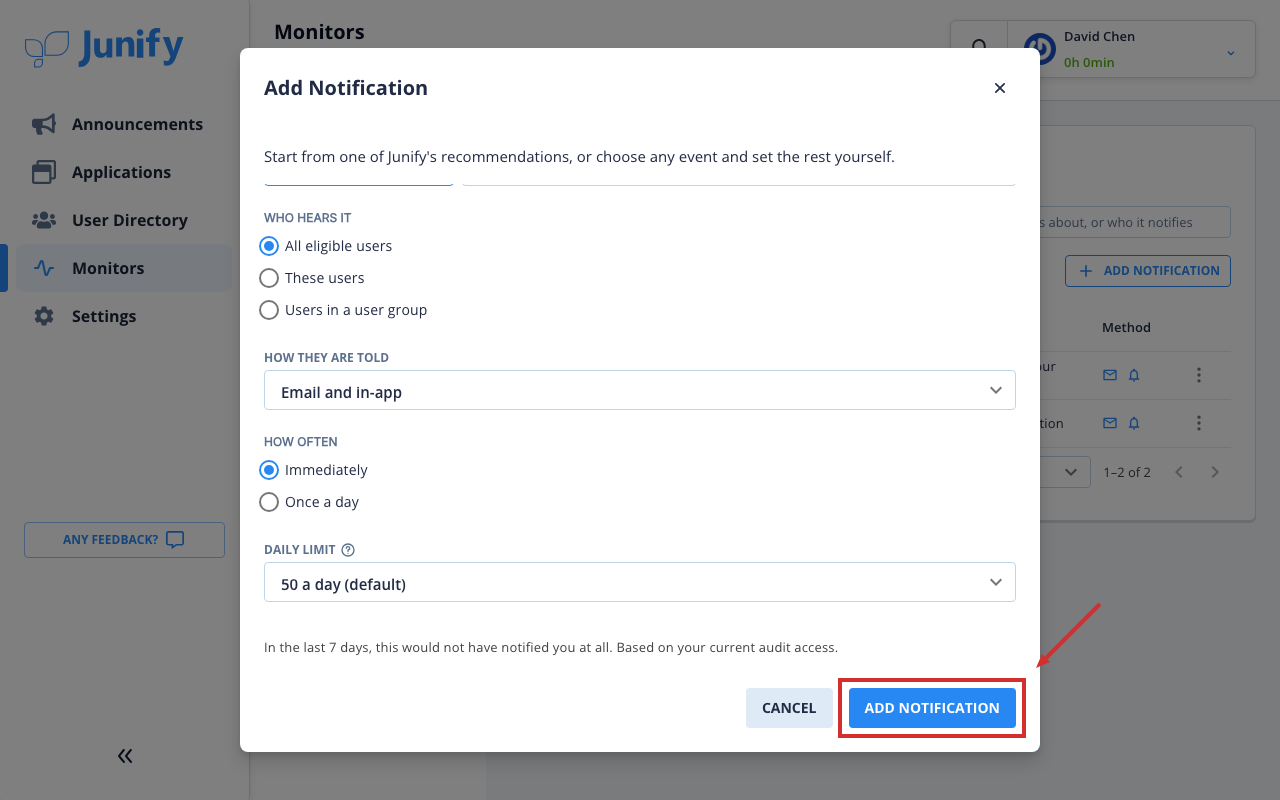
You can now add a notification for an event you choose, from eleven kinds such as user group changes or unusual sign-in activity. You decide who hears it, whether by email or in the app, how often it is sent, and its daily limit. You hear about the changes you care about, even ones the recommended notifications do not cover.
Follow the activity in a session recording
Session recordings now load piece by piece as they play, and you can jump to a moment that has not loaded yet. The timeline now lists the recorded activity, with each item’s type and time.
See Japanese dates and times across the app
For people who use Junify in Japanese, calendars and dates across the app now appear in Japanese. In Japanese, time fields and the working time calendar now use the 24-hour clock.
Assign applications from a member’s page
A member’s page now shows their application cards and accounts, and you can assign more applications to them from the same place. You can also enter the sign-in details for an account while you assign it.
Set download and print blocking per account
You can now turn download and print blocking on or off for a single account, while other accounts keep the application’s setting. An icon in the access policy column shows which accounts have it on, and you can filter the list by it.
See how many active users you have
The user directory now shows how many active users you have, and the number stays the same while you search or filter. Lists now show active users by default, and the status filter still shows offboarded users.
Email managers when a member clocks in
You can now choose managers who get an email each time a given member clocks in from the Junify phone app. It lets them confirm that a shift has started.
See each service’s recent updates and maintenance
The application status page now marks services that published updates in the past 7 days, such as new releases, new features or planned maintenance. Pointing at the mark shows a short summary of each update, and the daily status email lists them too.
Hear when a requested application is ready
When Junify adds an application that someone in your organization requested, that person now gets an email saying it is ready.
Members find their cards faster
Card searches for members now respond faster, and the current results stay on screen while a new search runs.
Find how-to guides on the new help site
Junify’s new help site at junify.com/help replaces the old help center, with step-by-step guides and screenshots of the product. Guides are grouped by role and by product area, and the Japanese guides are at junify.jp/help.
Help members with new phones restore their account
For members who move to a new phone or reinstall the app, the login page now shows recovery options right under the QR code. The member’s page shows a restoration in progress in a clearer layout with its 6-digit code, and the restoration email reads more clearly.
Offboarding now signs a member out everywhere
When you offboard or delete a member, Junify now signs them out of the phone app and the browser extension at once. Access they gave other tools through their Junify account ends too, and they cannot sign in again.